Edit or close a help ticket (Resource Manager)
On the Edit Help Ticket page, you can edit or close a help ticket.
When a help ticket is created, a number is automatically generated for that ticket. The servicing team head can assign a team, team member, or another individual; set a priority and status; include an expected completion date; add notes; or close the ticket.
|
Notes:
|
To view or edit a help ticket:
- Select Admin > Help Tickets.
The limiters set in the Customize View section determine what tickets you can see. Change the limiters to see more or fewer tickets.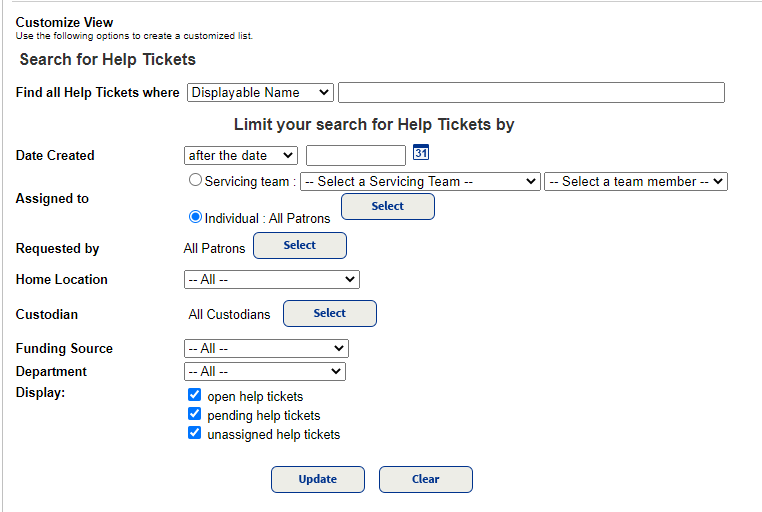
- Next to the ticket you want to assign or reassign a team member to, click
 .
. - Review the item's information. If you have optional permissions, you can click the item barcode number to view its Item Status page
- To view the help ticket history, click View History.
- Do one or more of the following:
If... Then... The resource has been submitted for repair Select the Item submitted for repair checkbox. The priority or status changed Choose the appropriate selection from the associated drop-down.
Updating the Status moves the ticket to the corresponding section on the Track sub-tab.
The servicing team or service team member should be updated Choose the appropriate selection from the associated drop-down.
Important: If you select a servicing team but not a team member, the assignment defaults to the team head. Tickets will remain Unassigned if there is no team head or the team head is removed. When a team is deleted, Destiny converts the Servicing Team assignment to an Individual assignment, retaining the team member as the Individual. A person not assigned to a servicing team will repair the resource Select Individual, and then click Select to find and select a patron. The completion date is known Complete the Expected Completion date field. The requester information needs updates Use Select to find and select a different requester. Add or change the Email or Phone. More information is known about the resource that would help the technician Click Add Note to type a narrative. - Click Save.
Close a help ticket
- Select Admin > Help Tickets > Track sub-tab.
- Next to the resource you want to edit, click .
- Use the Status drop‐down to select Closed.
- Click Save.
- Continue with the steps in Resolution.